
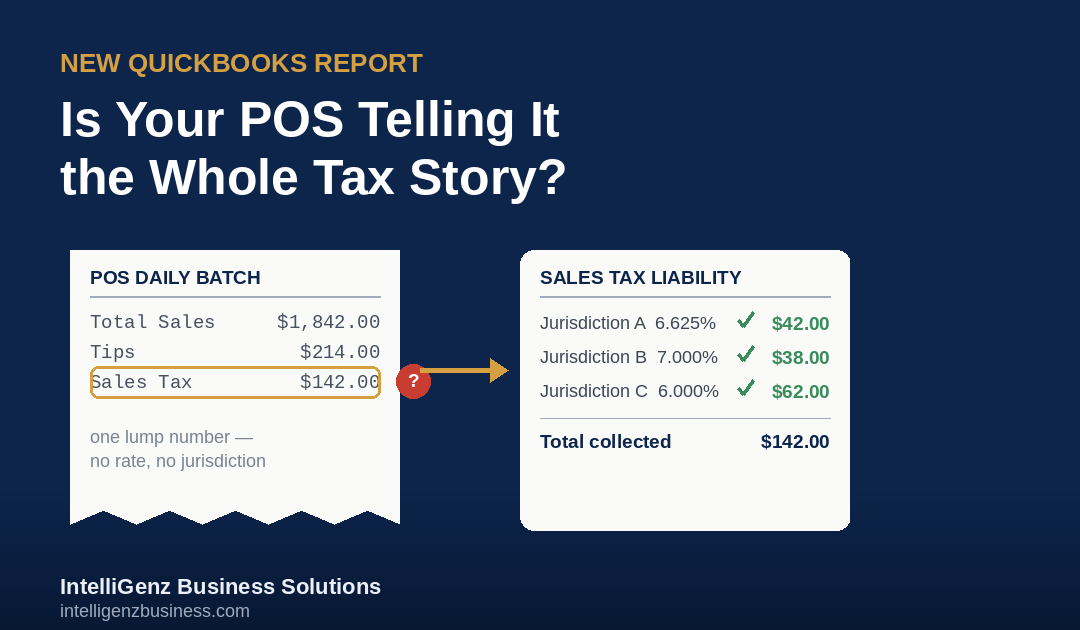
Picture a Saturday night close at your restaurant, or a Saturday afternoon at your boutique. The POS spits out a batch report: total sales, tips, and one tidy little “sales tax collected” number. You glance at it, feel fine, and move on. Then quarter-end rolls around and you’re staring at QuickBooks trying to figure out which jurisdiction that tax actually belongs to, and whether the number even matches what your POS told you three months ago.
Intuit just rolled out a tool built for exactly that headache, but it comes with a catch worth knowing about before you lean on it.
A Report Built to End the Spreadsheet Scramble
QuickBooks Online’s new Sales Tax Liability report pulls together everything you need to file: tax jurisdictions, taxable versus non-taxable sales, the rate charged, and the tax actually collected, with drilldowns so you can click into any number and see exactly which transactions built it. You can pivot the whole report by jurisdiction or by rate, which matters the second you’re selling across county lines or running more than one location.
On paper, that should make quarterly filing close to painless.
The Catch: It’s Only as Good as What Your POS Hands Over
Here’s where it gets real for retailers and restaurant owners specifically. Almost none of you are typing sales into QuickBooks by hand. You’re running Square, Clover, Toast, or something similar, and that system is syncing into QuickBooks for you. That part’s great, until you look closely at how it’s syncing.
A lot of POS-to-QuickBooks connections post one lumped daily batch entry: total sales, tips, and tax all mashed into a handful of summary lines instead of itemized, jurisdiction-tagged transactions. Clover users run into this constantly — the batch payout hits the bank, but sales, tips, and tax land in QuickBooks as one blob instead of detail QuickBooks can actually sort.
If that’s how your feed is set up, the new Sales Tax Liability report doesn’t have much to work with. It can only break out what’s actually sitting in QuickBooks by jurisdiction and rate, and a lumped journal entry doesn’t carry that detail. You open the shiny new report expecting clarity and find the same single number you started with.
What to Check Before You Rely On It
Before you lean on this report for your next filing, it’s worth five minutes to check whether your POS connector posts itemized sales receipts or one daily summary journal entry. If you’re running multiple locations, delivery platforms, or selling across different tax jurisdictions, that distinction is the difference between a report that tells you exactly what you owe and where, and one that just hands you back your POS’s guess with a nicer font.
This is exactly the kind of quiet setup issue that doesn’t show up until filing day, and by then it’s a scramble instead of a five-minute fix. If you want a second set of eyes on whether your books are actually capturing what your POS is ringing up, not just the sales tax piece but the bigger cash flow picture behind it, that’s where we come in. Let’s talk.